
Skip to content
666.in home Open account access

Using 666.in on a phone

Read the mobile navigation and device checks for using the 666.in pages on Android and iOS.

Two phones in a mobile device display

Android browser access

Open the site in a browser where you can see the address. Expand the top menu and select a period under Predictions. If you have opened a link inside a messaging app, moving it into your usual browser can make the address bar, zoom controls and tab history easier to find.

iPhone and iPad access

Use the menu button to see page links without leaving the current screen. Close the menu before scrolling the content. When you return after locking the phone, compare the IST clock with the period start shown on the page. A saved screenshot preserves the earlier instant.

Connection and device settings

Review any request to change a network setting on the device itself. Read the provider name and the permissions requested. For a file-related question, use Download and check the source first. Keep the operating system, browser and exact page name available if you report a display issue.

Compare the two mobile screens

A menu may be visible immediately on a tablet and tucked behind a button on a smaller handset. The page names and the order of the five durations stay the same. If the browser offers a desktop view, return to its usual mobile view before comparing the layout with the device illustrations below. Text size can be adjusted without changing the selected period.
Phone connection setup

iOS setup
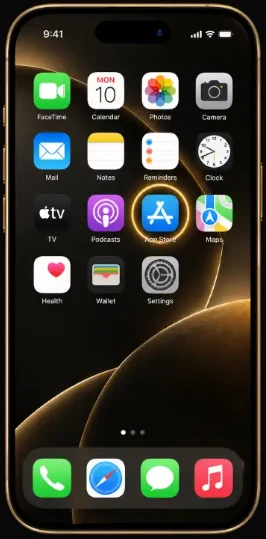
  1. iOS step 1. Open the App Store on your iPhone.

    Open the App Store on your iPhone.

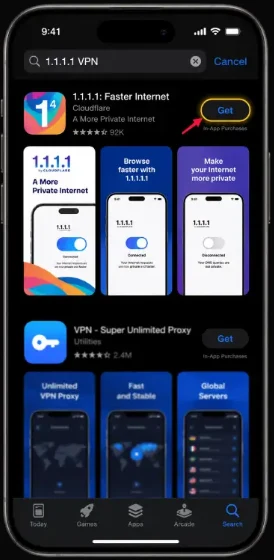
  2. iOS step 2. Find 1.1.1.1 by Cloudflare and check the publisher before installing.

    Find 1.1.1.1 by Cloudflare and check the publisher before installing.

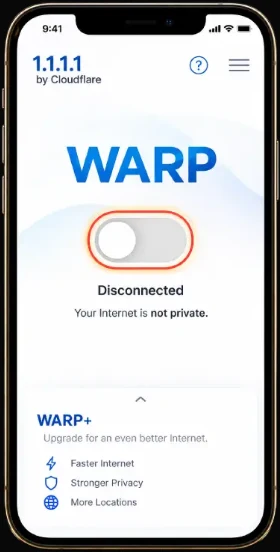
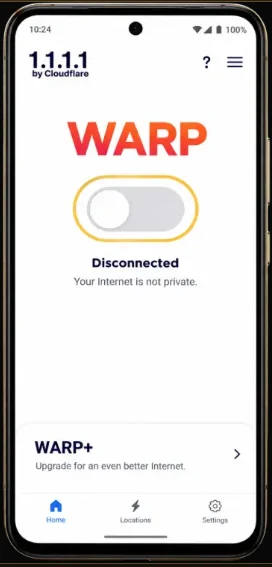
  3. iOS step 3. Open the app and find the WARP switch. Review any VPN profile request before continuing.

    Open the app and find the WARP switch. Review any VPN profile request before continuing.

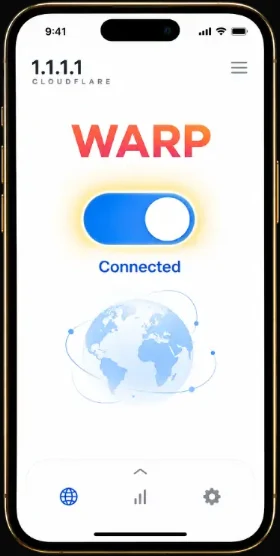
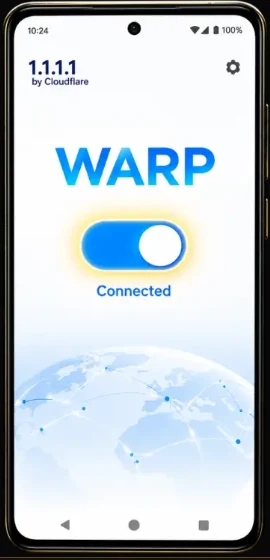
  4. iOS step 4. Switch on WARP. Check the connection status, then return to the browser.

    Switch on WARP. Check the connection status, then return to the browser.

Android setup
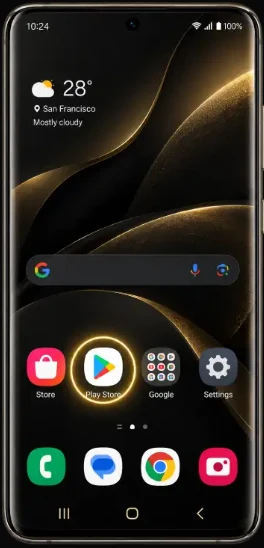
  1. Android step 1. Open Google Play on your Android device.

    Open Google Play on your Android device.

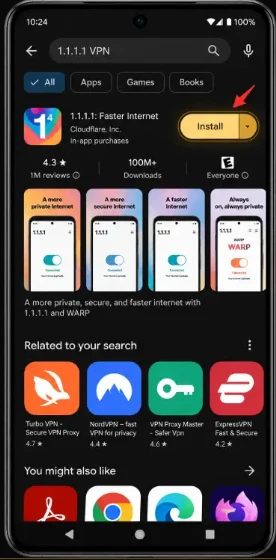
  2. Android step 2. Find 1.1.1.1 by Cloudflare and check the publisher before installing.

    Find 1.1.1.1 by Cloudflare and check the publisher before installing.

  3. Android step 3. Open the app and find the WARP switch. Review any VPN profile request before continuing.

    Open the app and find the WARP switch. Review any VPN profile request before continuing.

  4. Android step 4. Switch on WARP. Check the connection status, then return to the browser.

    Switch on WARP. Check the connection status, then return to the browser.